Field guide · Tutorial · 2026
How to print a Google review QR on receipts (2026 guide)
A step-by-step tutorial that gets a scannable Google review QR on your printed receipts in under 20 minutes. Covers thermal printer specs, POS configuration (Square, Toast, Clover, Lightspeed, Stripe Terminal), QR size and placement, scan testing, and the failure modes nobody documents.
What you need before you start
- A verified Google Business Profile. If you don't have one yet, Google sends a verification postcard with a code in 5-14 days. There's no shortcut. Everything else in this guide depends on this step.
- A thermal receipt printer. Modern 58mm or 80mm thermal printers at 203 DPI or higher all work. Star Micronics TSP100, Epson TM-T20III, and Epson TM-m30 are the most common.
- A POS that supports custom receipt images. Square, Toast, Clover, Lightspeed, and Stripe Terminal all do. Some older Aldelo, NCR Aloha, and Micros installations don't — the fallback in that case is stick-on labels applied by hand.
- A way to generate the QR code. Free options covered in step 3 below: Google's built-in QR, standalone generators (qrcrack.com, scanforreview.com, websitesqr.com), or a branded short link service like BigLove if you want a memorable URL alongside the QR.
- Two or three smartphones for testing. Different ages, ideally one iPhone and one Android. You'll use them to confirm the QR scans before you commit to printing it on every receipt.
The steps
Total time for first run: about 25 minutes. After the first store rollout, repeat in under 10.
Don't have your QR yet? Generate one in under a minute with our free Google review QR generator — it builds the correct review deep link and downloads a print-ready PNG, no signup needed. Then come back here for the printing specifics.
Get your business's Google review link
~2 minutes
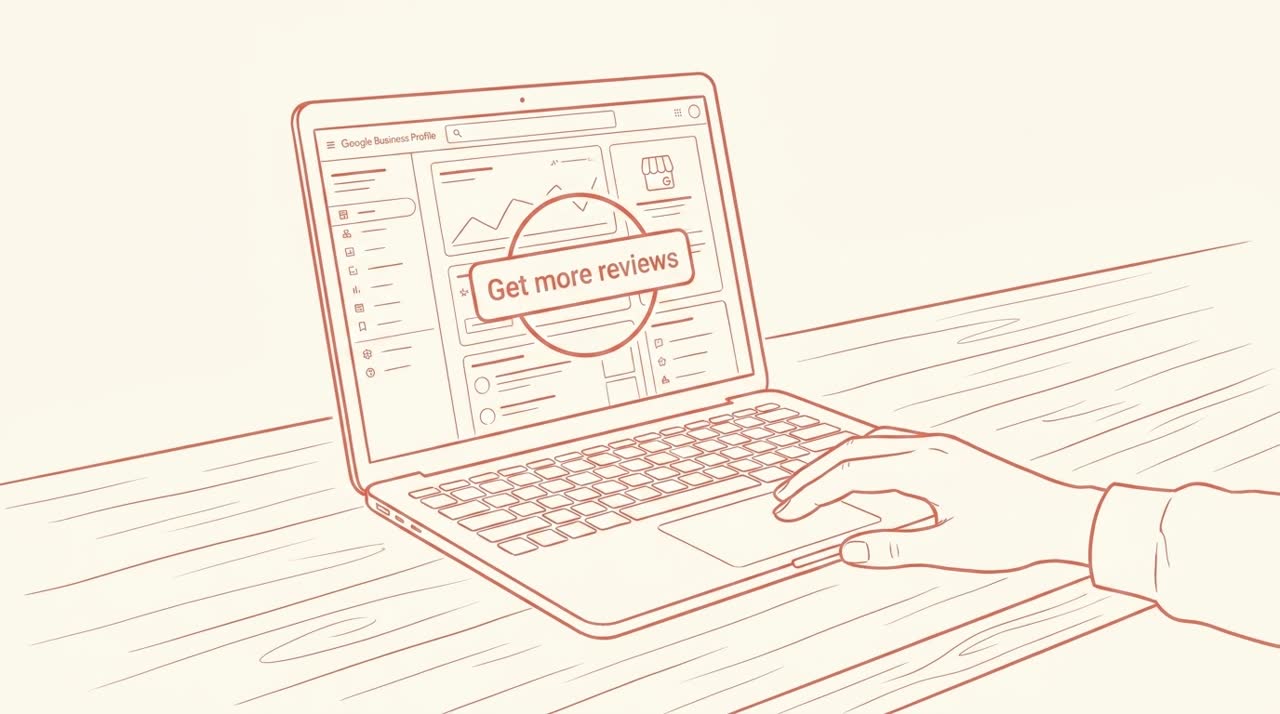
Open business.google.com on a desktop browser, sign in, select the location you want reviews for, and click 'Get more reviews' (sometimes labelled 'Ask for reviews'). Copy the URL — it'll look like https://g.page/r/XXXXXXX/review or https://search.google.com/local/writereview?placeid=ChIJN1t_tDeu... If you don't have a verified Google Business Profile yet, you'll need to verify the listing first (Google sends a postcard with a code in 5-14 days). Without a verified listing, this entire workflow doesn't work — that's the only mandatory dependency.
Decide whether to shorten or print the raw URL
~1 minute
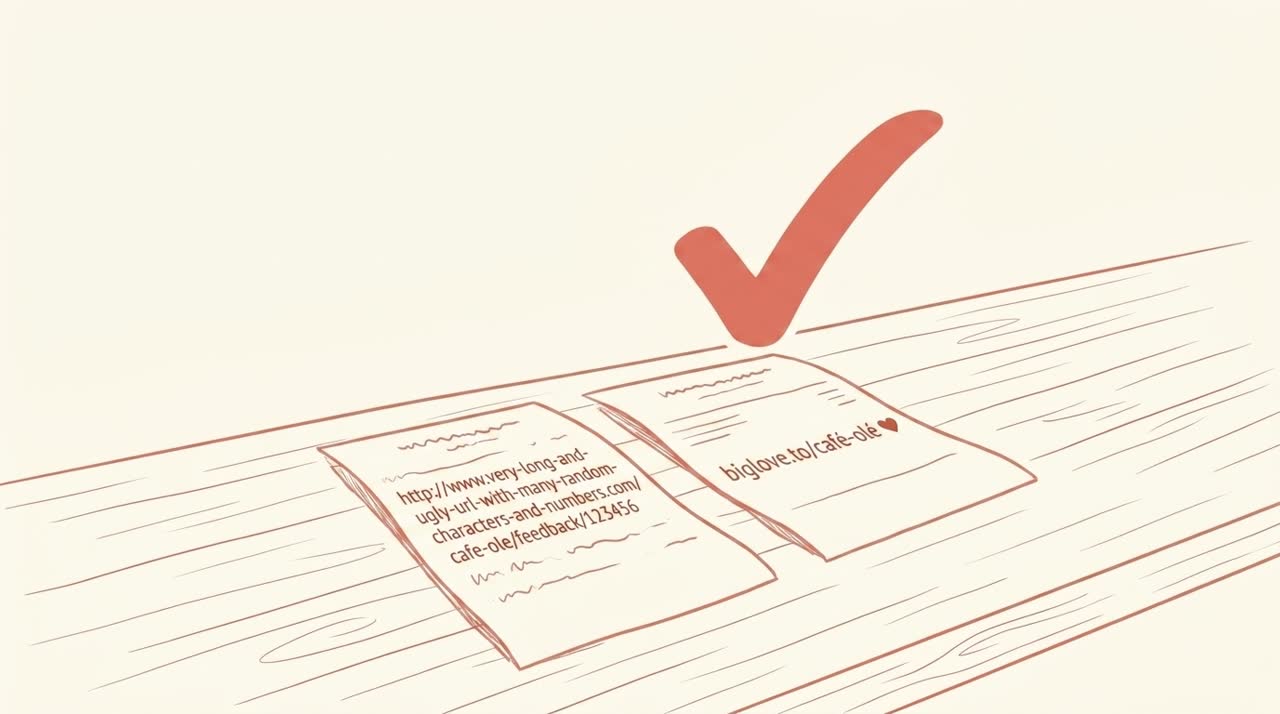
The raw Google review URL is 80-90 characters and does not fit on a 58mm thermal receipt without wrapping to three lines. Most operators choose one of three options: (a) only print the QR code without the URL text — works for camera scanning but fails for accessibility; (b) print a g.page short link if Google generated one for your listing — 20-25 chars, fits on one line; (c) use a branded short link service like BigLove (biglove.to/your-cafe, 16-25 chars). Option (a) is free and fastest; options (b) and (c) survive the receipt format and earn brand recognition.
Generate the QR code
~3 minutes
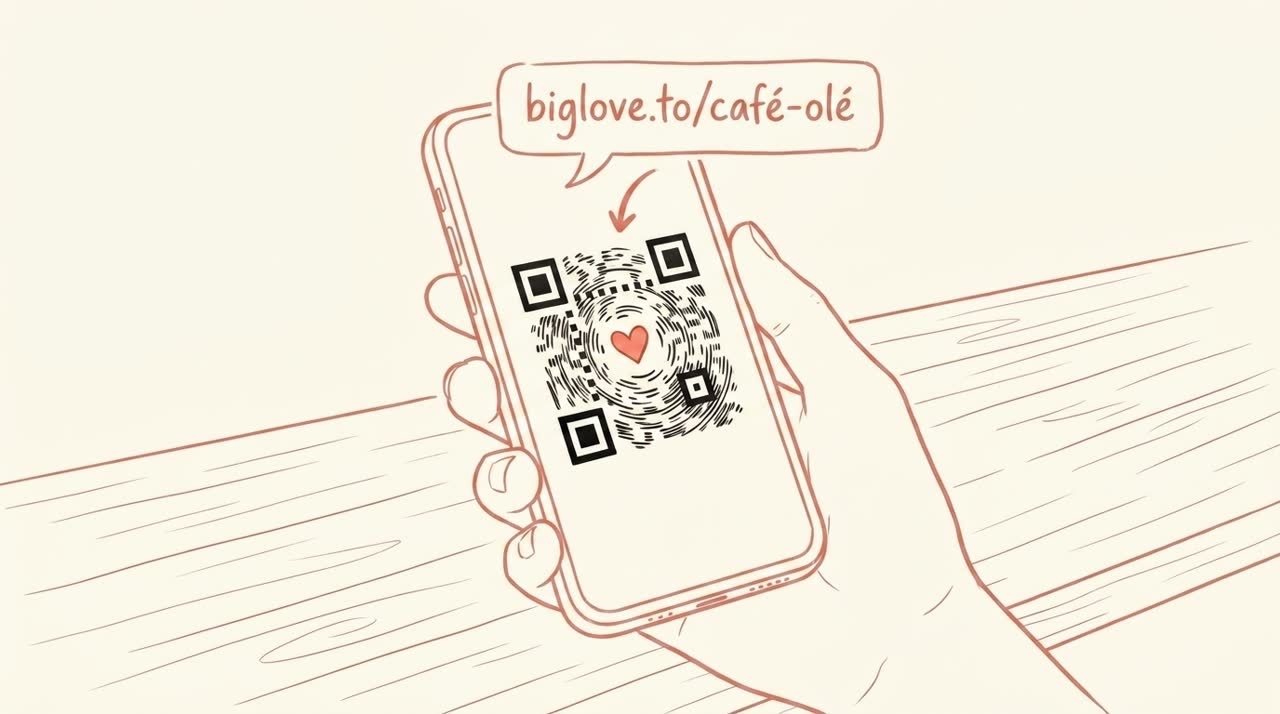
Three legitimate free options: (1) Google Business Profile dashboard generates a basic plain-black QR — right-click the QR and 'Save image as…' (note: QR generation only works on a desktop browser, not mobile). (2) Standalone generators like qrcrack.com, scanforreview.com, or websitesqr.com convert any URL to a QR PNG, with optional color customization. (3) Branded short-link tools like BigLove ship the QR alongside the slug — biglove.to QR codes use coral dots with the brand heart at center, in PNG or SVG. For print: always download as SVG when possible (vector scales cleanly to any size); PNG at 1000×1000 pixels minimum works as a fallback.
Test the QR with three different phones before printing
~5 minutes
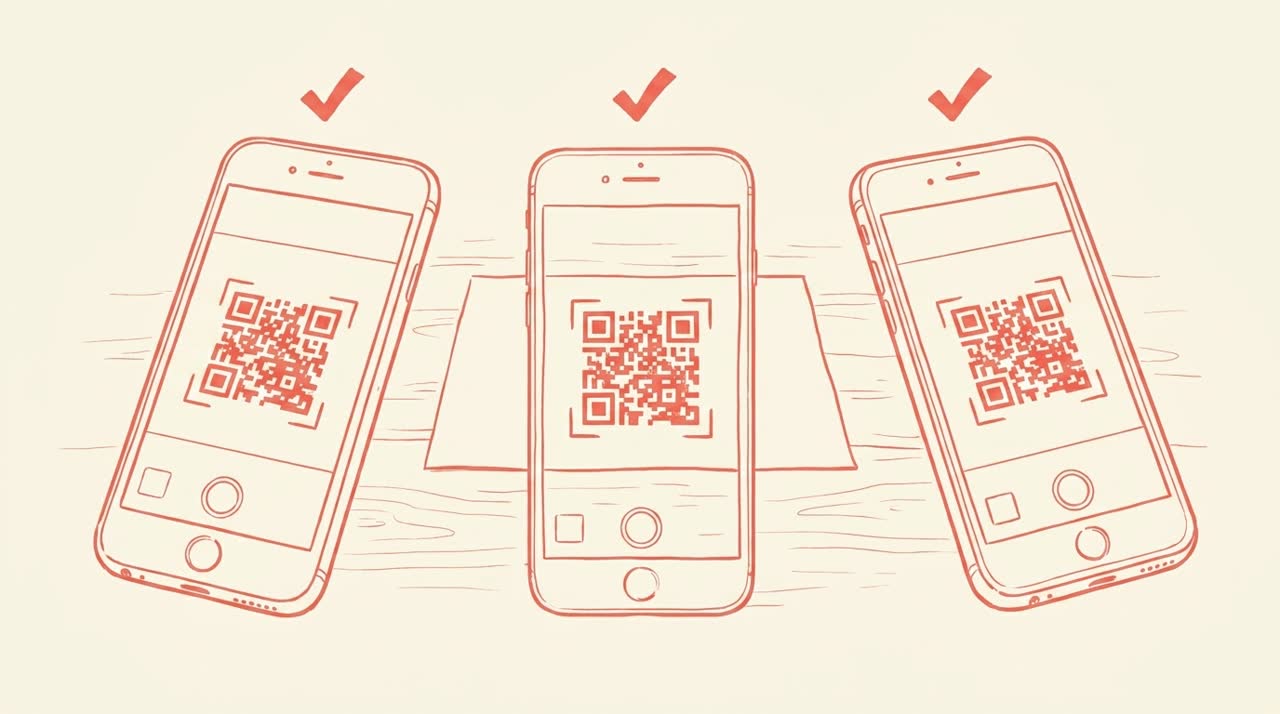
Print one test sheet at the size you plan to use on receipts (typically 1.5cm × 1.5cm to 2.5cm × 2.5cm). Scan it with: an iPhone (iOS Camera app), an Android phone (Google Lens or stock camera), and one older device if you have access — phones over 4 years old sometimes struggle with high-density QRs. The scan should resolve in under 0.5 seconds at a distance of 10cm. If it fails: the QR is too small, too low-contrast, or the quiet zone (the white border around the QR) is too narrow. The ISO/IEC 18004 standard specifies a quiet zone of 4× the module width — most generators handle this automatically, but cropping a QR by hand often breaks it.
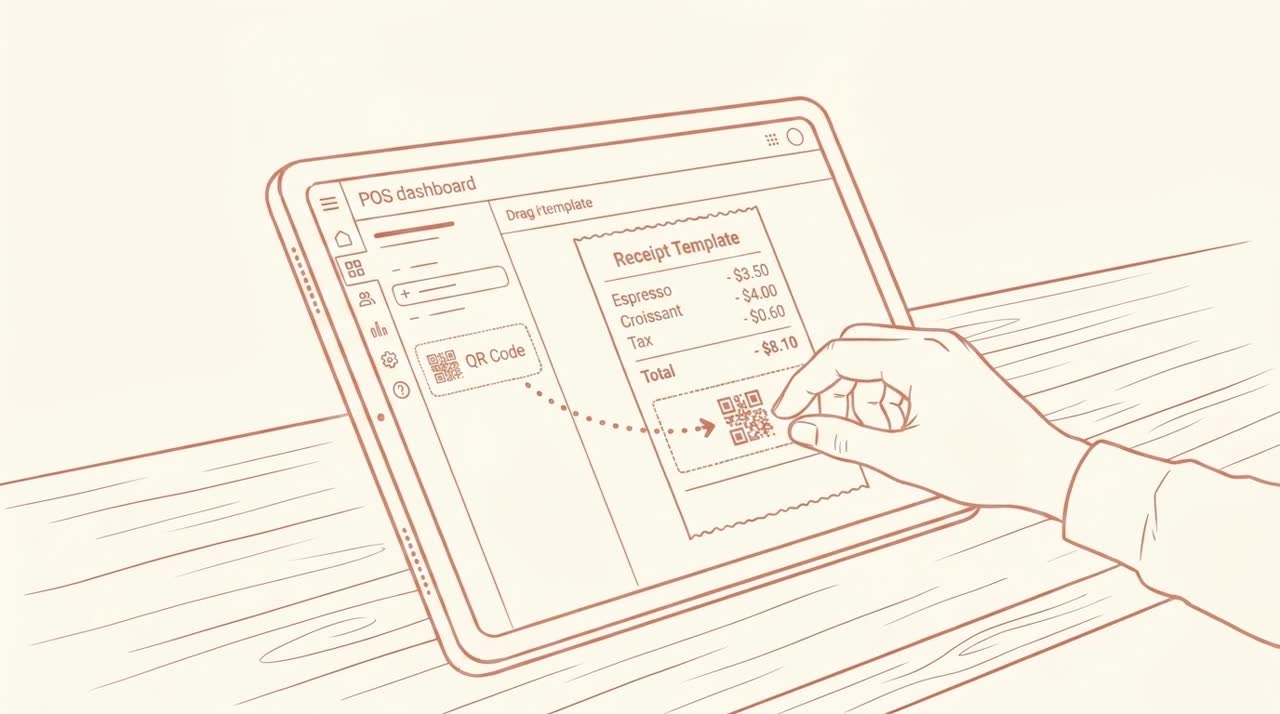
Add the QR to your receipt template
~5 minutes
Per major POS system: Square — Settings → Account & Settings → Receipts → upload a custom logo or footer image (max 500×500 px, PNG, displays at the receipt footer). Toast — Marketing & Loyalty → Receipts → upload custom image to the receipt footer area. Clover — Setup → Receipts → upload a footer image (256×128 px recommended). Lightspeed Retail — Settings → Receipts → 'Edit receipt template' → drag the QR image into the footer. Stripe Terminal — set 'receipt_logo' via the API or dashboard at Settings → Branding. If your POS doesn't support custom images on receipts (some older Aldelo, NCR Aloha, or Micros installations don't), the fallback is a thermal sticker applied to each receipt by hand — Avery 22806 stickers fit 60mm thermal receipts. Always print the URL underneath the QR as text for accessibility and scan-failure fallback.
Print a 10-receipt test batch and verify in the wild
~5 minutes
Don't roll out to all receipts immediately. Print 10 receipts at the actual store, hand a few to staff members and ask them to scan from a customer's typical posture (sitting at table, standing at counter, walking away). Verify the scan resolves to your real Google review page and not someone else's listing (this happens — typos in step 1 can silently route reviews to a different business with a similar name). Check the printed QR for: even ink coverage, no banding from thermal printer worn-out heads, no fading near the edge of the paper. Thermal receipts fade over time — a receipt left in a sunny car window for a week can lose enough contrast to break the QR.
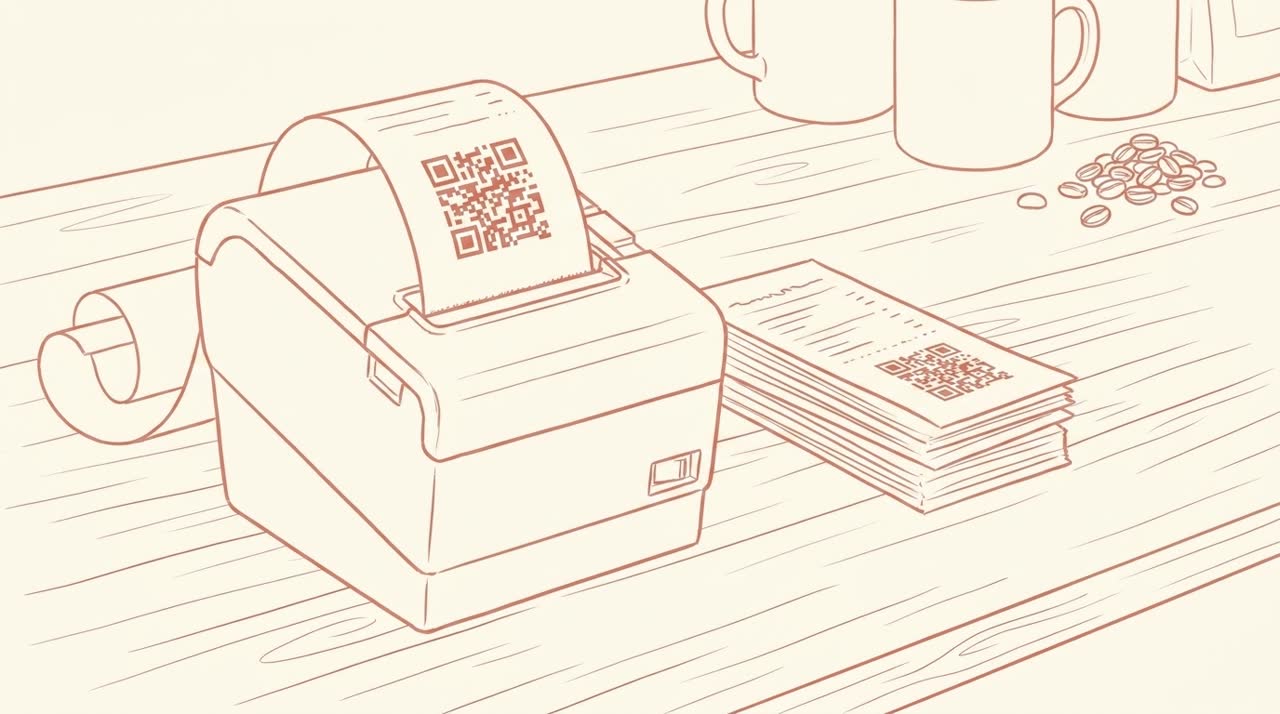
Print receipts at scale plus add complementary placements
~4 minutes
Receipts are the highest-conversion placement (customer just had the transaction, the QR is in their hand), but they're not the only one. Add a printed table tent or counter sign with the same QR at 5cm × 5cm minimum — bigger QR codes scan more reliably at distance. A door sticker as customers leave is the second-most-effective spot, especially for restaurants and salons where the receipt arrives at the end of a satisfying experience. Don't print one QR per customer-touchpoint — print the same QR everywhere so customers who don't scan at the counter can scan from the car. Repeated exposure (receipt + table + door) outperforms a single high-quality placement.
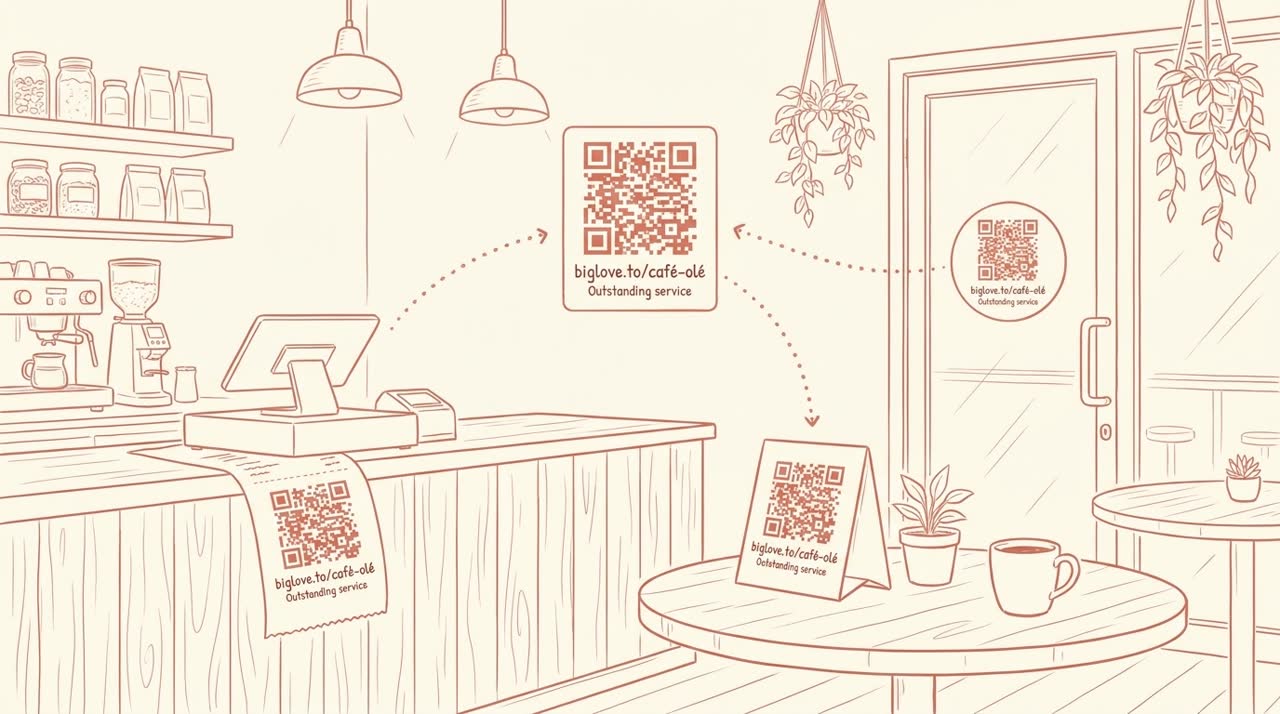
Track scans and iterate
If you used a plain QR pointing at the raw Google review URL, you have no scan tracking — you'll only see the lagging indicator of new Google reviews appearing on your profile. If you used a branded short link service with analytics (BigLove Pro at $7/month includes country, hour, device, and referrer per scan), you can correlate scans with reviews and identify which placement converts best. Weekly review of which receipts trigger scans tells you whether your QR is too small, in the wrong spot, or paired with a transaction-type that's too rushed (drive-through gets fewer scans than dine-in for obvious reasons).
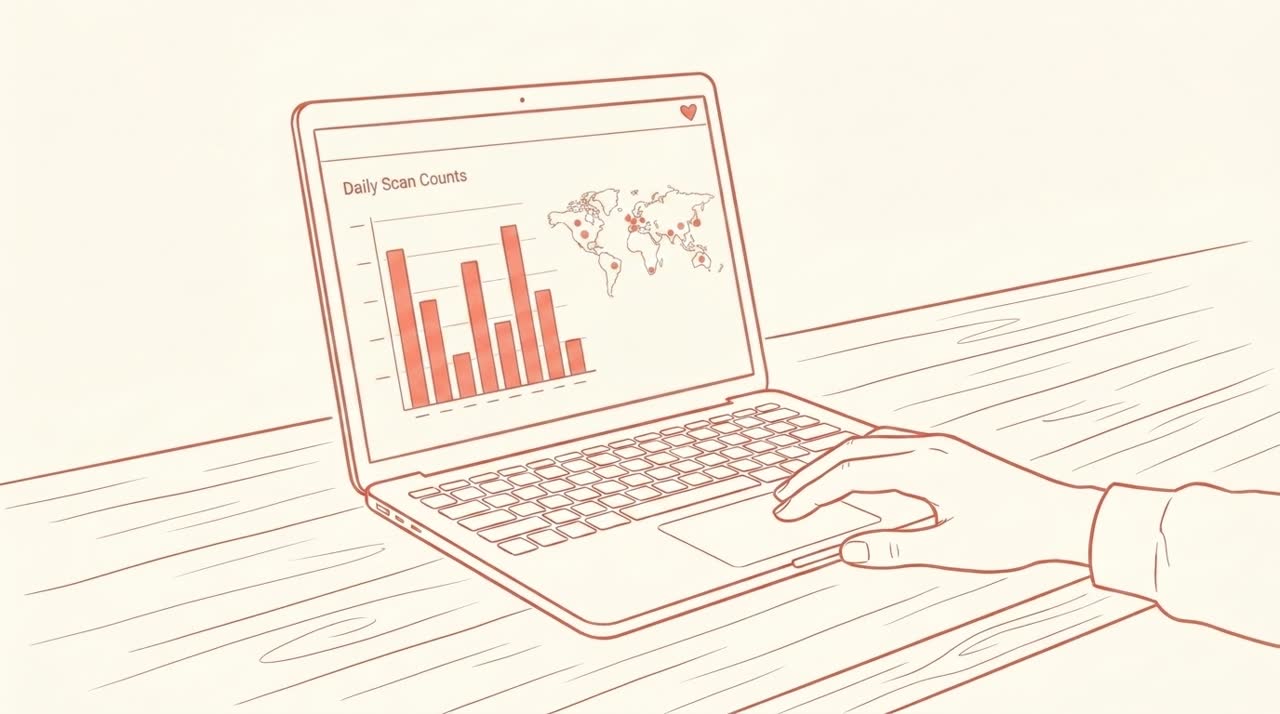
Receipt printer and QR sizing reference
Numbers you can use when configuring your POS or troubleshooting a scan failure. All values are verified against vendor spec sheets and the ISO/IEC 18004 QR standard.
| Spec | Recommended | Minimum |
|---|---|---|
| QR size on receipt (close-range scan) | 2cm × 2cm (0.8 in²) | 1.5cm × 1.5cm |
| QR size on counter signage / table tent | 5cm × 5cm | 3cm × 3cm |
| QR size on door sticker / window decal | 8-10cm | 5cm × 5cm |
| Thermal printer resolution | 203 DPI | 180 DPI (old) |
| Quiet zone (white border around QR) | 4× module width (per ISO/IEC 18004) | Same — never less |
| Contrast ratio (QR dark : background) | Black on white (high contrast) | Avoid red, pale gray, low-contrast on thermal paper |
| Source file format | SVG (vector, scales cleanly) | PNG at 1000×1000 px |
| Receipt paper width | 58mm (2.25") or 80mm (3.125") | Either works |
| Scan distance from camera | 10-15 cm | 4-20 cm |
| Scan time on modern smartphone | Under 0.5 seconds | Under 2 seconds |
POS-specific configuration
Where exactly to upload the QR image in each major POS system. Paths verified May 2026 against each platform's help center.
- Square POS
- Dashboard → Account & Settings → Receipts. Upload a custom logo (max 500×500 px PNG, max 1MB). Appears under the order total. Square also supports a separate "marketing message" text field — print the URL there as fallback text. Documentation: Customize your receipts.
- Toast POS
- Toast Web → Marketing & Loyalty → Receipts → Custom Image section. Toast accepts PNG and JPG; the image displays at the receipt footer with the URL printable in a "marketing copy" text field below. Documentation: Toast Receipt Customization.
- Clover POS
- Clover Web Dashboard → Setup → Receipts. Upload a footer image (256×128 px recommended, transparent PNG works). Clover's receipt image displays narrower than Square or Toast, so a stretched QR scans poorly — keep the image square and add the URL as text in the message field. Documentation: Clover Help.
- Lightspeed Retail
- Settings → Receipts → Edit receipt template → drag image into the footer block. Lightspeed's template editor is HTML-based, so you can position the QR image precisely (left, center, right) and add a styled URL text block beneath it. Lightspeed Restaurant uses a different config under Restaurant Manager → Front of House → Receipts.
- Stripe Terminal
-
Dashboard → Settings → Branding. Stripe Terminal
uses your account branding for receipts; the logo image is what
prints. To get a QR on the receipt, set the brand logo to a
composite image (QR + small business name). Stripe also supports
receipt_metadatavia the API for adding custom text below the order total. - Older POS without custom image support
- For Aldelo, NCR Aloha 6.x or earlier, Micros 3700/9700, and other legacy systems: the workaround is a stick-on label applied to each receipt by hand. Avery 22806 stickers (60mm × 26mm) fit 58mm thermal receipts. Order pre-printed stickers from a print service (about $30 for 500 stickers in 2026) and have staff peel and stick at the receipt-handing step. Slower than POS-printed, but doesn't require upgrading the POS.
Troubleshooting: when the QR doesn't scan
Five failure modes in order of how often they cause customer complaints, each with the fix.
- QR is too small. Anything below 1cm × 1cm scans unreliably on phones older than 4 years. Bump up to 1.5cm × 1.5cm minimum, 2cm × 2cm recommended. Resize the source image in your POS settings, not at the printer driver level — driver-level resizing often crops the quiet zone.
- Quiet zone got cropped. The ISO/IEC 18004 standard requires a white margin 4× the module width around the QR. If you cropped your QR image tight in Photoshop or with a generator's "trim margins" option, the scan rate drops sharply. Regenerate the QR with default margin settings.
- Thermal paper has aged. Thermal receipts fade in heat and UV light. A receipt that scanned fine at the counter can fail after a week in a sunny car. Two fixes: (a) print fresh test batches monthly and rotate paper stock; (b) tell customers to scan immediately rather than "later." There's no chemistry fix — thermal paper fades.
- Worn thermal printer head. Visible as horizontal banding in printed text. The QR loses contrast in the banding rows and the scan fails. Clean the head with isopropyl alcohol monthly; replace the print head every 50,000 receipts (Star Micronics) or when banding persists after cleaning.
- Wrong URL embedded in the QR. The QR scans fine, but it routes to a different business's review page. This happens when you copied the wrong placeid in step 1 or used a similarly- named business's link. Fix: scan your own QR on the test sheet, confirm it lands on YOUR Google review page (not a competitor's), and only then commit to printing.
A 30-second note on compliance
Asking customers for a review with a printed QR code is fully legal in every anglo jurisdiction. What is illegal: gating (selecting which customers see the prompt based on predicted sentiment), incentivizing reviews (offering discounts in exchange), and review suppression (filtering out negative feedback before it reaches Google).
"Reviews and other user contributions to Google Maps must reflect a genuine experience. Offering incentives, like free or discounted goods or services, to customers in exchange for reviews is considered fake engagement and is strictly prohibited."
— Google Business Profile Help, article 16816815
The same applies under the FTC's 2024 Consumer Reviews Rule (16 CFR Part 465, max civil penalty $53,088 per violation, adjusted January 2025), the UK Digital Markets, Competition and Consumers Act 2024, Australia ACCC, and New Zealand Commerce Commission. A receipt-printed QR pointing customers at your Google review form is compliant by default in all of them. See /compliance for the full positioning.
Frequently asked
- What size should the Google review QR code be on a receipt?
- A minimum of 1.5cm × 1.5cm (about 0.6 inches square) on a 58mm thermal receipt, with 2cm × 2cm recommended for older smartphone cameras. Below 1cm × 1cm, modern phones struggle to focus and the scan fails. The ISO/IEC 18004 QR standard requires a quiet zone (white border) of 4× the module width — most generators add this automatically. For counter signage and door stickers where customers scan from a greater distance, use 5cm × 5cm minimum.
- Can I print a QR code on a 58mm thermal receipt?
- Yes. Both 58mm (2.25") and 80mm (3.125") thermal printers support QR codes. The 58mm width fits a QR up to about 4cm × 4cm with margins; 80mm allows up to 5.5cm × 5.5cm. Resolution matters more than width: any thermal printer at 203 DPI or higher (the modern Star Micronics TSP100, Epson TM-T20III, and Epson TM-m30 series all are) produces a clean QR. Old 180 DPI printers from before 2010 produce QRs that scan unreliably under 1.5cm.
- Does Square / Toast / Clover support custom QR codes on receipts?
- Yes, all three support custom images on the receipt footer. Square: Settings → Receipts → upload custom logo (500×500 px max, PNG). Toast: Marketing & Loyalty → Receipts → upload custom image. Clover: Setup → Receipts → upload footer image (256×128 px recommended). For all three, the image displays under the order total. Lightspeed Retail and Stripe Terminal also support custom images. Older Aldelo, NCR Aloha, and Micros 3700/9700 installations sometimes don't — in those cases, the workaround is a stick-on label applied manually.
- Should I print the URL alongside the QR or just the QR?
- Both. Print the QR for camera-scanning customers and the URL underneath as text. The text fallback handles three real cases: (a) customers whose phone camera fails to scan, (b) accessibility — screen readers can read the URL but not the QR, and (c) customers who want to type the link later from a different device. The URL adds about 8mm of vertical space to the receipt, which is worth it. The branded short link tools like BigLove explicitly print well under the QR for this reason; a raw 90-character Google URL does not.
- Why is my QR code not scanning when printed?
- Five common failure modes, in order of frequency: (1) Too small — anything below 1cm × 1cm rarely scans reliably. Bump to 1.5cm × 1.5cm minimum. (2) Quiet zone cropped — generators add a 4× module-width white border; if you cropped it tighter, regenerate. (3) Low contrast on thermal paper — thermal paper yellows after a few weeks in a wallet or car; print fresh test batches monthly. (4) Worn thermal printer head — visible as horizontal banding in printed text; clean or replace the head. (5) Wrong URL embedded — verify by scanning your own QR on the test sheet and confirming the destination matches your real Google review page.
- How do I generate a branded Google review QR for free?
- Three completely free options: (1) Google Business Profile dashboard generates a basic black-and-white QR pointing to your review form — works for any verified listing, no branding customization available. (2) Standalone QR generators (qrcrack.com, scanforreview.com, websitesqr.com) convert any URL you paste in into a QR PNG with optional color customization. (3) BigLove's free tier gives you a branded biglove.to short link plus a matching coral-and-heart QR card, with 3 clicks per link in free use to validate before paying. For full branding control (custom colors, logo embedded, no third-party watermark), the standalone generators with image editing are free; for slug control plus QR plus analytics, BigLove starts at $4/month.
- Can I use the same QR code on receipts, table tents, and door signage?
- Yes, and you should. Print the same QR (encoding the same URL) at the appropriate size for each placement: 1.5-2cm on receipts (close-range scan), 5cm on table tents (medium-range), 8-10cm on door signage and window decals (long-range scanning from outside). Customers who don't scan at the counter often scan from their car or at home after the visit; a unified QR across all surfaces means any of those moments converts to a review. Don't generate one QR per surface — generate one QR per location and reuse it everywhere.
- Is it legal to ask customers for a review with a QR code on the receipt?
- Yes. Google's Reviews Policy (Help article 9273900) and the FTC's 2024 Consumer Reviews Rule (16 CFR Part 465) both explicitly allow asking customers for reviews, including via printed materials like receipts. What is prohibited: gating (selecting which customers see the prompt based on predicted sentiment), incentivizing reviews (offering discounts in exchange), and filtering out negative feedback before it reaches Google. A simple receipt-printed QR pointing at your Google review form is fully compliant in all major anglo jurisdictions (US, UK, Australia, New Zealand, Ireland).
Sources
Vendor configuration paths verified May 2026 against each platform's help center. Regulatory citations are verbatim from primary sources. QR sizing comes from the ISO/IEC 18004 standard plus empirical field-testing on modern smartphone cameras.
- Google Business Profile Help — Create a Google link or QR code to request reviews
- Square — Customize your receipts
- Toast — Receipt customization
- ISO/IEC 18004:2015 — QR Code bar code symbology specification
- FTC Trade Regulation Rule on the Use of Consumer Reviews and Testimonials (16 CFR Part 465)
- Companion post: Best Google review QR code tools, 2026 — honestly compared
Want a memorable URL on those receipts?
BigLove gives you biglove.to/your-cafe — short enough
to print, memorable enough to say out loud. Free preview with 3
clicks; $4/month for unlimited use. The matching QR ships with
every link.
3 free clicks · no card to start · cancel anytime